How to Use FollowUpThen
Send an email to this address. Put a date before the @ sign. We'll follow up then!
When To Use
Big problems. Simple solution.

Forgetful recipients
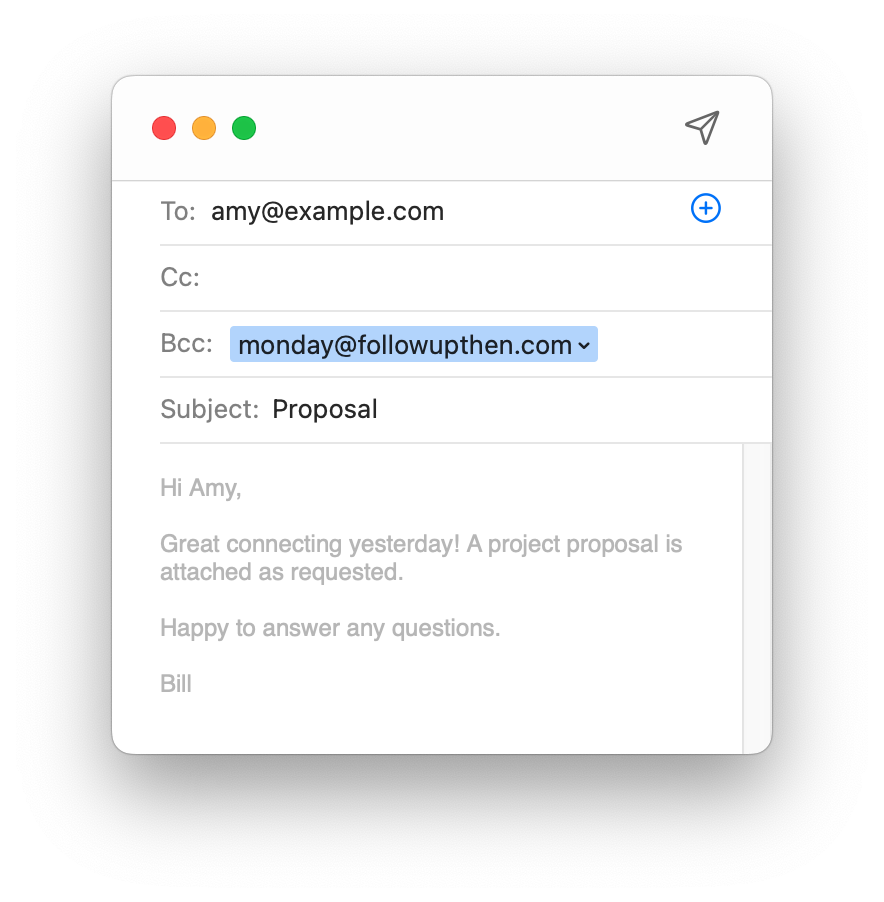
Put FUT in the Bcc field. Only you see the reminder.

Close deals
Following up is easy when it's effortless.

Delegate tasks
Put FUT in the Cc field. Follow up until it's done.

Automate Stuff
Connect your tools, streamline your day.

Inbox zero
Forward emails to the perfect future moment.

Build relationships
An email every few months is effortless with FUT.

Shorten your todo list
Spare your todo list. Forward tasks to yourself instead.

Make someone's day
Remember special dates with ease.

Stay in touch
Don't let your connections fall through the cracks.
Try this...
Open your email program (any email program)

 Copy
Copy
Wait 1 minute
If it's your first time, click the link to verify your address.
Receive followup
It comes from noreply@followupthen.com  No Followup?
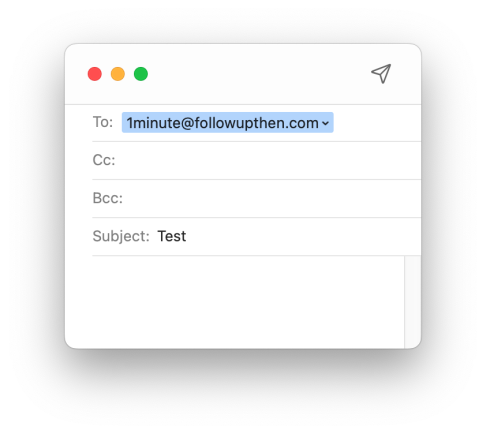

The "1min" part can be any date!
Make it (really) fast
FollowUpThen becomes more effortless the more you use it. Here are tips to improve followup efficiency.
Autocomplete
Teach your email program common FUT formats by sending an email to autocomplete@followupthen.com Hit "reply all" to the email we send back, and that's it.
Short Domain @fut.io
Save keystrokes by using our short domain. It works exactly the same way. Ex: 1min@fut.io
vCard
Download our vCard of common formats.
Keyboard Shortcuts
Take the time to learn your email program's keyboard shortcuts. When combined with FUT, you will fly.
Email Based Actions (below)
Interact with your followup without leaving your email.


Private Reminders
Followups only for you.
BCC
Place FUT in the BCC field to keep it entirely hidden. The reminder goes to only you. Your recipients see no trace of FUT (other than your uncanny timing).
TO
Schedule a quick reminder. Your future self will thank you.
Forward
Forward emails from your inbox to the moment you will actually need them.

Group Reminders
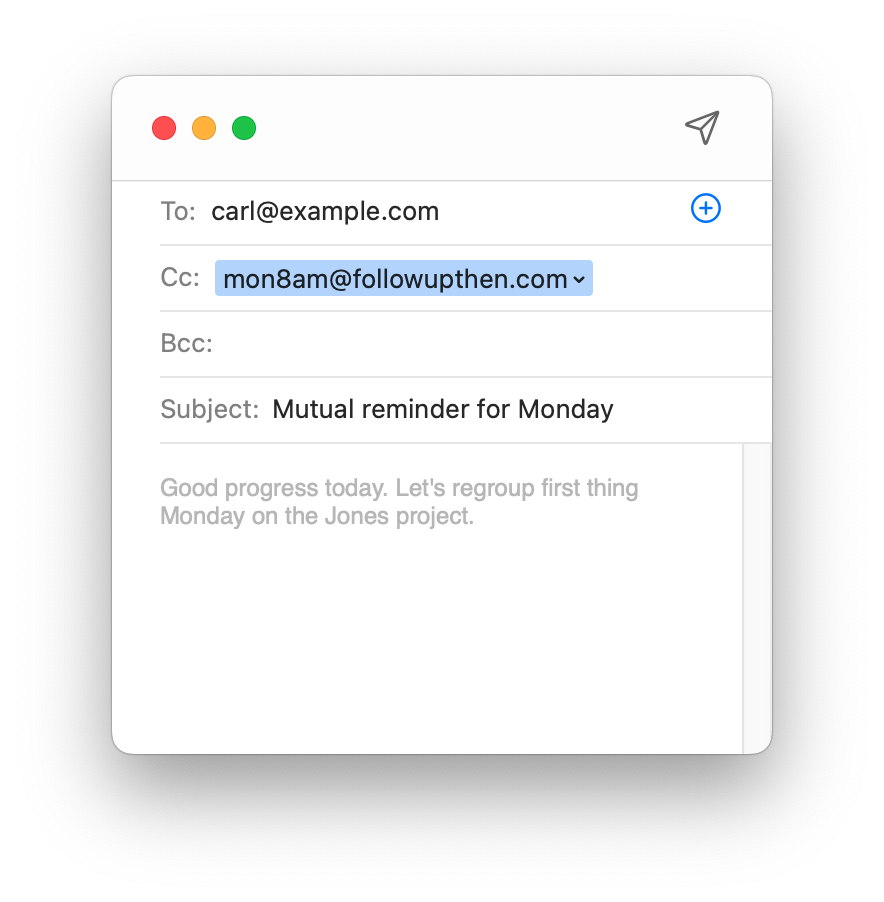
Perfect for project management and collaboration.
CC
Placing FUT in the "cc" field automatically sends a followup to everyone in the "to" field when the followup is due.
What will it look like?
Preview the future followup by simply clicking on it in the web app, or by sending yourself an email and cc'ing 1sec@fut.io.
Customize
Change the automatic followup message from your customize settings page.
Add the Whitelabel skill to remove the footer message to remove all FollowUpThen branding.
Note: The only time FUT will email your recipients is if you place it in the "cc" field.
Best With Threading
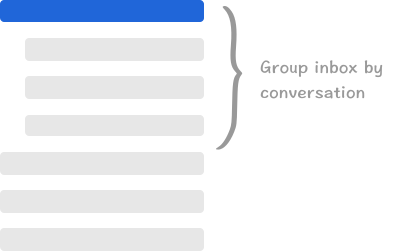
Threading, or "conversation view" is a setting in nearly all email programs. It groups new emails with previous emails in the same conversation.
FUT works best with threading turned on, but it also works without it.

With threading, following up is as simple as clicking on the last email you sent and hitting "reply"

Without threading, hit "forward", delete the FUT content and send the email to your original recipient. You can also find the earlier message.

Manage Followups
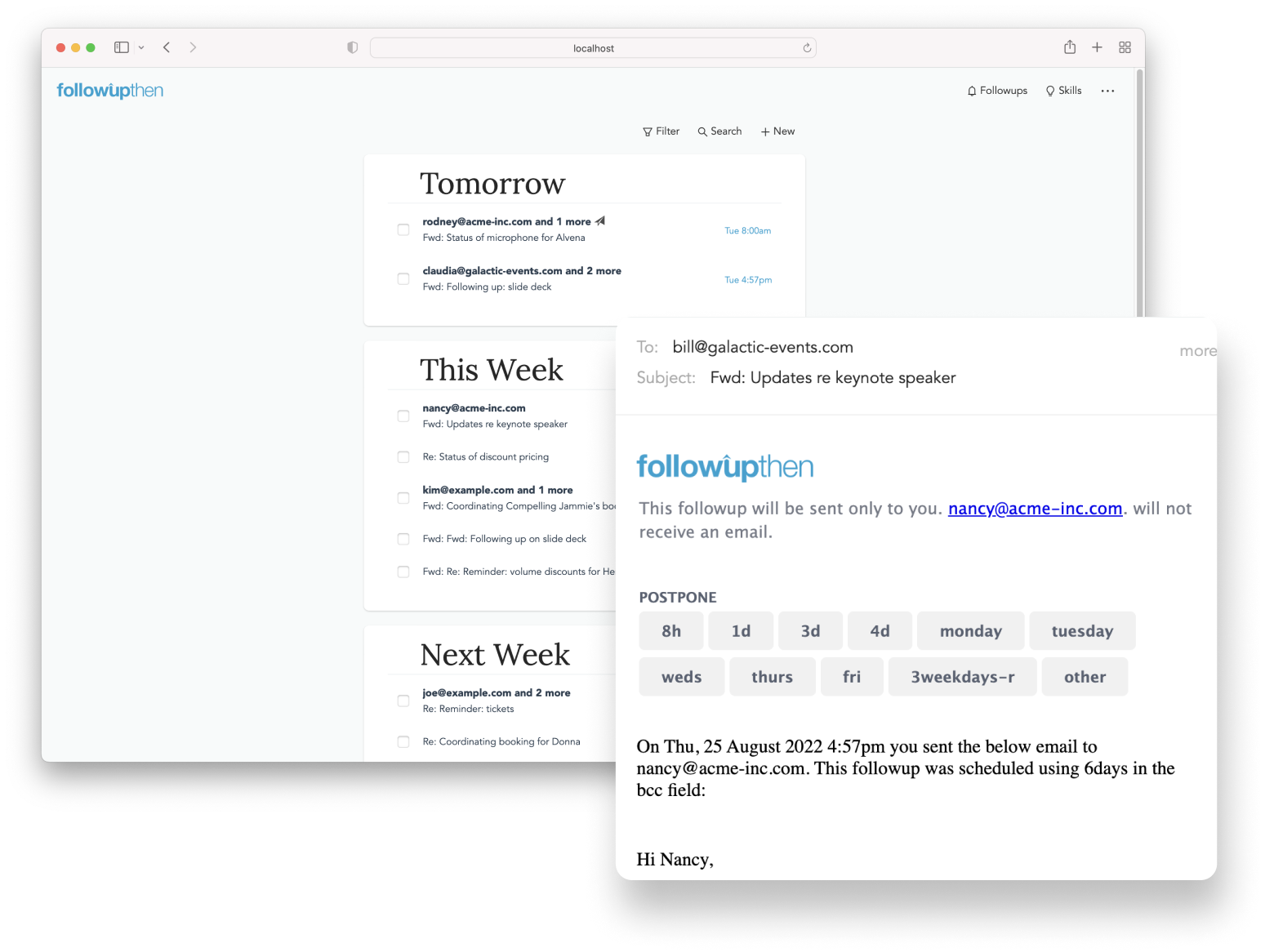
Handle your future inbox with ease.
Web App
View, manage and interact with your upcoming follouwps from our handy web app: app.followupthen.com
Pending
Email pending@followupthen.com to receive your upcoming FUTs.
Daily Agenda
By default, you'll receive a a daily agenda, which you can manage here.
Email Actions
Get things done without leaving your inbox.
This is a premium feature which can you can enable from your settings page.
Email-based actions are incredibly efficient, especially on mobile. They even work if your device is offline! Read more

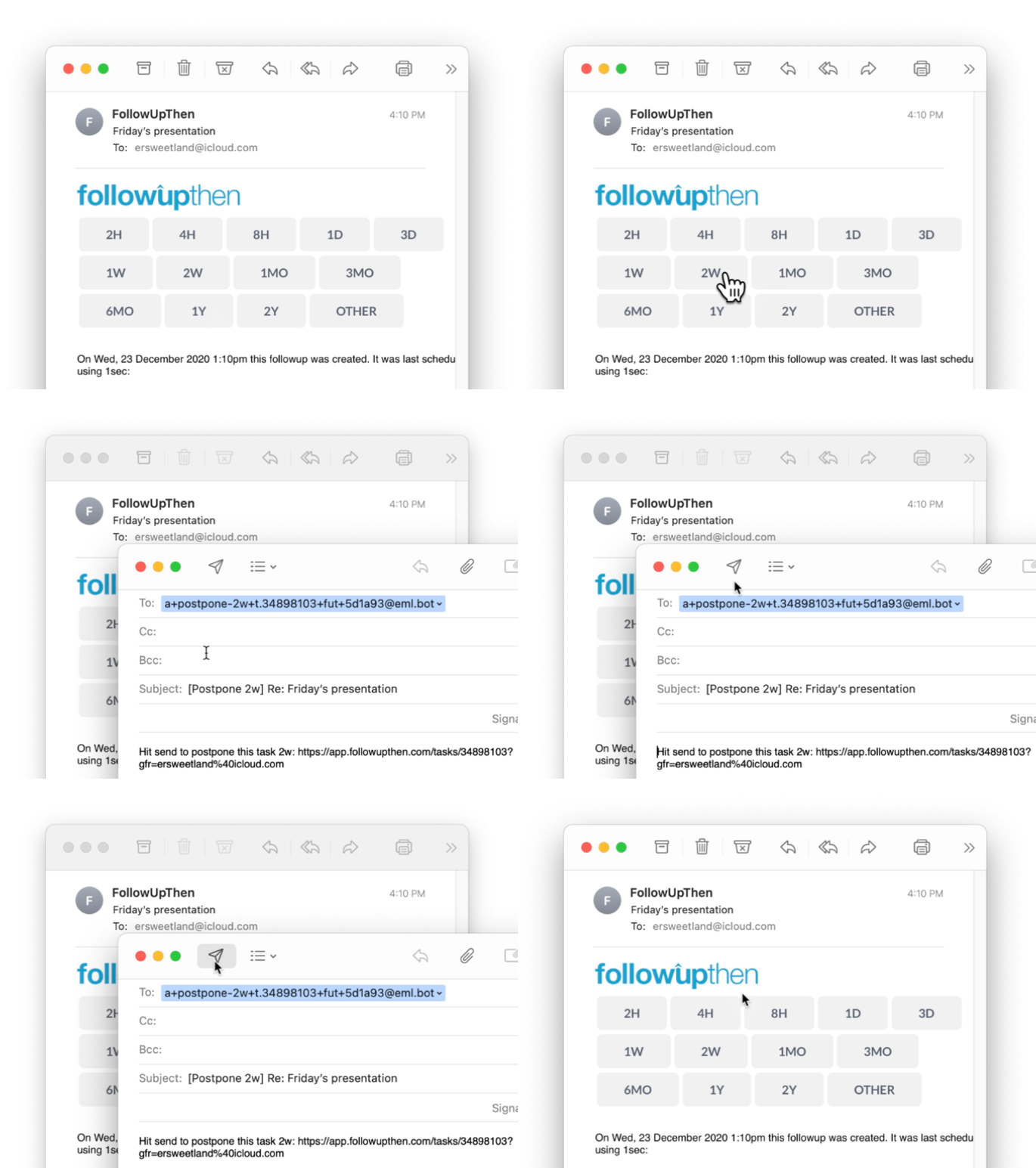
Clicking on an action ("postpone" in the example above) composes a new email. It is pre-populated with instructions which tell use to postpone the followup. Nearly all email programs support this. Configuration is sometimes required.
Start simple, then explore
You may be surprised to find that this simple reminder, in practice, feels more like a personal assistant — one that you can train and invest in, just like an actual assistant.
Skills
Add-ons that take your followups to the next level.
 SMS Reminders
Response Detection
Calendar Integration
Customize and extend FollowUpThen to get exactly what you need at the perfect moment to get something done.

Time Format Reference
Thousands of date formats are supported. Experiment using your own timezone and account settings on your skills page.
Time Interval
- 1minute@followupthen.com
- 2hours@followupthen.com
- 3days@followupthen.com
- 4weeks@followupthen.com
- 5months@followupthen.com
- 6years@followupthen.com
Abbreviations work as well
- 3m@followupthen.com (3 months)
- 30min@followupthen.com (30 minutes)
- 2h@followupthen.com
- 3d@followupthen.com
A few more abbreviations, this time with our short domain.
- 4w@fut.io
- 5mo@fut.io
- 6y@fut.io
Specific Time of Day
Follows up on the next occurrence of the specified time.
- 11am@followupthen.com
- 1132am@followupthen.com
- 1630@followupthen.com
- 1500@followupthen.com
Specific Date
- mar30@followupthen.com
- 22april@followupthen.com
- 1Jan2022@followupthen.com
- December2nd@followupthen.com
- December2nd2022@followupthen.com
Specific Date and Time
When combining different parts of a date, avoid putting the numbers together directly. Separate them with a "th" or "nd". For example, April29th2024@fut.io, not April292024 does not.
- 12pmAug25@followupthen.com
- Aug25At12pm@followupthen.com
- 1300.7.Aug.2022@followupthen.com
- September14.3pm@followupthen.com
- 9amSept14th2022@followupthen.com
- 9amTomorrow@followupthen.com
Day of Week
- tuesday@followupthen.com
- tues@followupthen.com
- monday3pm@followupthen.com
Unique Days of Month
- LastDayOfMonth@followupthen.com
- 3rdThursday@followupthen.com
- 2ndFri@followupthen.com
Handy Scheduling Terms
- tomorrow@followupthen.com
- nextweek@followupthen.com
- nextmonth@followupthen.com
- am@followupthen.com
- pm@followupthen.com
- tonight@followupthen.com
- noon@followupthen.com
Recurring Reminders
Daily reminders
- every1pm@followupthen.com
- every6am-sms@followupthen.com
- everyDay630am@followupthen.com
- everyDay1600@followupthen.com
- 6pmDaily@followupthen.com
- Daily1800@followupthen.com
- daily5pm@followupthen.com
- weekdays5pm@followupthen.com
- weekdays9am@followupthen.com
Weekly reminders
- everywed@followupthen.com
- everywed630pm@followupthen.com
- everywednesday1600@followupthen.com
- everyMonday9am-sms@followupthen.com (includes a text message)
Monthly reminders
- every15th@followupthen.com
- every1st8am@followupthen.com
- 1600every1st@followupthen.com (Hour must come first with 24hr in this context)
- 8amEvery14th@followupthen.com (Hour-first works with 12hr time as well)
- monthly@followupthen.com
- every2ndTuesday@followupthen.com
- every1stFriday4pm@followupthen.com
- 1600every1stFriday@followupthen.com
- LastFridayOfMonth@followupthen.com
- LastDayOfMonth@followupthen.com
Yearly reminders
- everyMarch30th@followupthen.com
- everyMarch30th11am@followupthen.com
- every11amMar30@followupthen.com
- 11amEveryMarch30th@followupthen.com
- 1600everyMarch30th@followupthen.com (Hour must come first with 24 hr time in this context)
Reminders at custom intervals
- every12hours@followupthen.com
- every2years@followupthen.com
- every3months@followupthen.com
- every1hour@followupthen.com
Delay the start of a recurring reminder
- every2weeksStartingJan21st@followupthen.com
- every3rdTuesdayStartingIn6Weeks@followupthen.com
Note: We do not yet have an "ending" keyword, but it is on our roadmap.
